Alt text examples: good and bad, by image type
Good alt text says what an image means in its context, in as few words as that takes. These alt text examples cover twelve image types, from product photos and charts to icon buttons and decorative images. Each shows a weak version, a better version and the rule behind it, following the W3C decision tree.
Published . Last reviewed .
Alt text is how a screen reader user, a visitor on a broken connection and a search engine learn what an image is for. The rule comes from WCAG 1.1.1 Non-text Content: images need a text alternative that serves the same purpose, and purely decorative images should be ignored by assistive technology. Missing alt text is one of the most common failures on the web: the WebAIM Million February 2026 report found it on 53.1% of the home pages it tested.
All examples on this page are original and illustrative. The businesses, people and products in them are invented. The categories and rules follow the W3C Images Tutorial, which says the right text "needs to be determined by the author, depending on the usage, context, and content of an image." For the full background, read our complete guide to alt text.
First, decide what the image is for
The W3C alt decision tree asks a short series of questions. In plain terms:
- Does the image contain text? If the same text is already on the page as real text, use
alt="". If the text is the only copy, the alt text repeats it. If it is an icon with a function, say the function. - Is it in a link or a button? If the control would be unclear without the image, the alt text says where the link goes or what the button does.
- Does it add meaning to the page? A simple photo or graphic gets a short description of that meaning. A chart or diagram gets a short alt plus the full information elsewhere on the page. If nearby text already says it, use
alt="". - Is it purely decorative? Use
alt="". - Still unsure? The tree does not cover every case; the full tutorial does.
Alt text examples by image type
Each row is one image in one context. Change the context and the right answer can change, which is covered further down.
| Image type | Context | Weak alt text | Better alt text | Rule |
|---|---|---|---|---|
| Product photo | Main image on a backpack listing | alt="IMG_2231.jpg" | alt="Olive canvas backpack with brown leather straps and a zip front pocket" | Informative: name the item and what sets it apart. |
| Person | News story about a library reopening | alt="woman smiling" | alt="Head librarian Rosa Kim cutting the ribbon at the reopened Elm Street branch" | Informative: who and what, as far as the page establishes it. |
| Chart | Quarterly update with a line chart | alt="chart" | alt="Line chart of monthly online orders, January to June. Data in the table below." plus a real table | Complex: short alt, full data in text nearby. |
| Logo, not linked | "Our partners" strip | alt="logo" | alt="Harbor Savings Bank" | Image of text: the organization's name. |
| Icon button | Search button showing only a magnifying glass | alt="magnifying glass icon" | alt="Search" | Functional: the action, not the picture. |
| Linked logo, no other text | Site logo in the header that goes to the home page | alt="Northwind Coffee logo" | alt="Northwind Coffee home" | Functional: the destination. |
| Linked image with text in the same link | Product card where the photo and the product name are one link | alt="Olive canvas backpack" (the name is announced twice) | alt="" | Functional: the link text already says it. |
| Decorative image | Wave graphic between two page sections | alt="blue wave divider graphic" | alt="" | Decorative: empty alt, never a missing one. |
| Image of text | Banner that reads "Free returns within 60 days" | alt="returns banner" | alt="Free returns within 60 days" | Image of text: the same words as the image. |
| Infographic | Graphic showing how to recycle a phone case | alt="infographic" | alt="How to recycle a phone case in four steps, listed below" plus the steps as text | Complex: every fact in it also exists as text. |
| Screenshot | Help article step: "add alt text in the editor" | alt="screenshot" | alt="Product editor with the Alt text field below the image preview" | Informative: what the reader needs for this step. |
| Group of images | Five star icons showing a rating | Each star alt="star" | First star alt="Rated 4 out of 5 stars", the rest alt="" | Group: one alt text carries the whole message. |
The star rating row follows the W3C groups of images tutorial, which gives the first star the whole rating and the rest an empty alt.
Four of the examples, with the images
The pictures below are simple illustrations we drew for this page. On this page each image is the thing being discussed, so its own alt text describes it. The third column shows the alt text the same image would get in its real job on a website, which is a different answer because the context is different.
| Image | Real context | Alt text in that context | Why |
|---|---|---|---|
 | Main photo on a backpack product page | alt="Olive canvas backpack with brown leather straps and a zip front pocket" | Informative. A real product photo shows the canvas and leather, so the alt text can name them; a drawing cannot. |
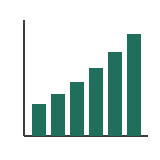 | Chart in a quarterly update, with the figures in a table below it | alt="Bar chart of monthly online orders, January to June, rising every month. Data in the table below." | Complex. The alt text gives the point and says where the data is; the table carries the numbers. |
 | The only content of a search button | alt="Search" | Functional. The listener needs the action, not the picture. |
 | Divider between two sections of a home page | alt="" | Decorative. It carries no information, so screen readers should skip it. |
The examples in code
Product photo
Describe what a shopper would ask about over the phone: the item, its color, material and the detail that tells it apart from the one next to it. Leave out price and brand slogans; the page already has them. Our guide to alt text for product images goes deeper on variants, galleries and swatches.
<img src="backpack-olive.jpg"
     alt="Olive canvas backpack with brown leather straps and a zip front pocket">
Photos of people
Describe people by what the image shows and what the page establishes: their role, what they are doing, and visible details that matter to the point of the image. Do not guess at identity, ethnicity, gender, age or emotion that the picture and the page do not make clear. Name a person only when the page tells you who they are. Our own alt text generator follows the same rule: it is told to describe people neutrally by visible attributes only.
<!-- The caption names her, so the alt text can too -->
<img src="ribbon-cutting.jpg"
     alt="Head librarian Rosa Kim cutting the ribbon at the reopened Elm Street branch">

<!-- Stock photo on a services page: describe, do not guess -->
<img src="consultation.jpg"
     alt="Two people at a desk reviewing a printed floor plan">
Chart or graph
The W3C complex images tutorial describes two parts: a short description that identifies the image, and a full text version of its information. One of its approaches is to say in the alt text where the long description is.
<figure>
  <img src="orders-h1.png"
       alt="Line chart of monthly online orders, January to June. Data in the table below.">
  <figcaption>Online orders, first half of the year</figcaption>
</figure>
<table>
  <caption>Monthly online orders</caption>
  <!-- one row per month -->
</table>
Icon button and linked logo
For functional images, the W3C functional images tutorial uses alt="Print this page" for a printer icon and alt="W3C home" for a logo that links to the home page. The alt text describes the action or destination. Nobody needs to hear that the icon is a magnifying glass.
<button type="submit">
  <img src="search.svg" alt="Search">
</button>

<a href="/">
  <img src="northwind-logo.svg" alt="Northwind Coffee home">
</a>
Inline SVG
An <svg> drawn into the page has no alt attribute. When it is informative, give it role="img" and a name with aria-label. In WAI-ARIA 1.2, the img role is "a container for a collection of elements that form an image" and requires a name. The W3C technique ARIA24 uses the same pattern for icon fonts. When the SVG is decorative, or a visible label already names the control, hide it with aria-hidden="true" instead.
<!-- Informative: a status icon with no visible text -->
<svg role="img" aria-label="In stock" viewBox="0 0 24 24">
  <path d="..." />
</svg>

<!-- Decorative: the button text already says it -->
<button type="button">
  <svg aria-hidden="true" focusable="false" viewBox="0 0 24 24"><path d="..." /></svg>
  Add to cart
</button>
Linked image next to its own link text
When a product photo and its name sit inside one link, an alt text that repeats the name makes a screen reader read it twice. The W3C example for an image beside link text uses an empty alt.
<a href="/products/olive-backpack/">
  <img src="backpack-olive-thumb.jpg" alt="">
  Olive canvas backpack
</a>
Decorative image
The W3C decorative images tutorial is direct about the difference between an empty alt and a missing one: "Leaving out the alt attribute is also not an option," because some screen readers then announce the file name instead.
<!-- Right: screen readers skip it -->
<img src="wave-divider.svg" alt="">

<!-- Wrong: some screen readers read out "wave-divider.svg" -->
<img src="wave-divider.svg">
Image of text
For images of text, the W3C tutorial says "the text alternative must contain the same text presented in the image." Styling, fonts and shadows are not described. Better still, use real text styled with CSS, so it can be resized and translated.
<img src="returns-banner.png" alt="Free returns within 60 days">Same image, different alt text
Alt text describes an image in a context, not in the abstract. WebAIM puts it this way: an image "may need vastly different alternative text depending on how it is used." Take one photo of a runner's shoe striking wet pavement:
- On the product page for that shoe:
alt="Gray and orange trail running shoe, side view, mid-stride on wet pavement". The shopper needs the product. - In an article about running form:
alt="Runner's foot landing midfoot, heel just off the ground". The reader needs the technique, not the brand. - As a mood image behind a headline that says everything:
alt="". It adds nothing a listener needs.
This is also why an AI description can be accurate and still wrong for the page: a model sees the pixels, not the purpose. Our test of AI alt text accuracy shows where vision models get the pixels wrong too.
Mistakes that appear in every category
- Filenames.
alt="DSC_0193.JPG"tells a listener nothing. It usually comes from a CMS filling the field automatically. - "Image of" and "photo of". WebAIM advises against these phrases because screen readers already announce the image, and suggests including the medium only when it matters, as in a painting or an illustration.
- Keyword stuffing. Google's image SEO guidance warns that filling alt attributes with keywords "results in a negative user experience and may cause your site to be seen as spam."
- Repeating the caption. If a visible caption or the next sentence already says it, the alt text should add something or be empty, or the listener hears it twice.
- Describing a different image. Alt text copied from a similar listing reads perfectly and is still false. Only comparing it with the actual image catches it, which is what our alt text checker does.
- Narrating everything. Lighting, camera angle and background rarely matter. WebAIM notes that typically "only a few words are necessary."
Check your own alt text
- The free scan finds images with no alt attribute and placeholder alt text such as filenames, among its 16 rule-based checks.
- The accessibility bookmarklet runs checks on the page you are looking at, including pages behind a login.
- The alt text checker downloads the first six described images on a page and asks whether each description is true of its image.
- The alt text generator drafts descriptions for images you upload. Treat its output as a first draft and read it against the picture.
- For text inside images, the image contrast checker measures whether that text is readable, and the color contrast guide explains the thresholds in WCAG 1.4.3.
Alt text is one part of making a website accessible, and it is the criterion behind our WCAG 1.1.1 explainer. No automated tool, ours included, can confirm a whole site meets WCAG; see what we check for exactly what is covered.
Alt text questions
How long should alt text be?
As short as the image's purpose allows. WCAG sets no character limit, and WebAIM notes that "only a few words are necessary" in most cases. If the description needs more than a sentence or two, the image is probably complex and the detail belongs in text on the page, with a short alt that points to it.
Should alt text start with "image of"?
No. Screen readers already announce that there is an image. Start with the content. Mention the medium only when it matters, for example "Oil painting of the harbor at dusk" in an art gallery listing.
When should alt text be empty?
When the image is purely decorative, or when nearby text already says everything the image conveys, such as a product photo inside a link that also contains the product name. Use alt="", never a missing attribute.
What is the difference between alt text and a caption?
A caption is visible to everyone; alt text replaces the image for people who cannot see it. If a caption already describes the image, the alt text should not repeat it. Either add what the caption leaves out or use an empty alt.
Does alt text help SEO?
Google says it uses alt text, along with computer vision and the page's content, to understand images. Its guidance asks for useful, information-rich alt text in the context of the page and warns against keyword stuffing. Alt text written for a listener is usually what search engines want too.
Can I use AI to write alt text?
As a first draft, yes. In our own test of AI alt text accuracy, a vision model judged most alt texts correctly but confused look-alike patterns and ambiguous details. Read every AI description against the image and the page before you publish it.
Is the alt text on your site true?
Our free checker downloads the first six described images on any page and compares each one with its alt text. No signup.
Check if my alt text is actually rightFind the images missing alt text
The free scan finds missing and placeholder alt text across up to 3 pages of your site, alongside the other rule-based WCAG checks. No signup.
Scan my site for free